How to connect an Osmo Pocket 4 to iPhone
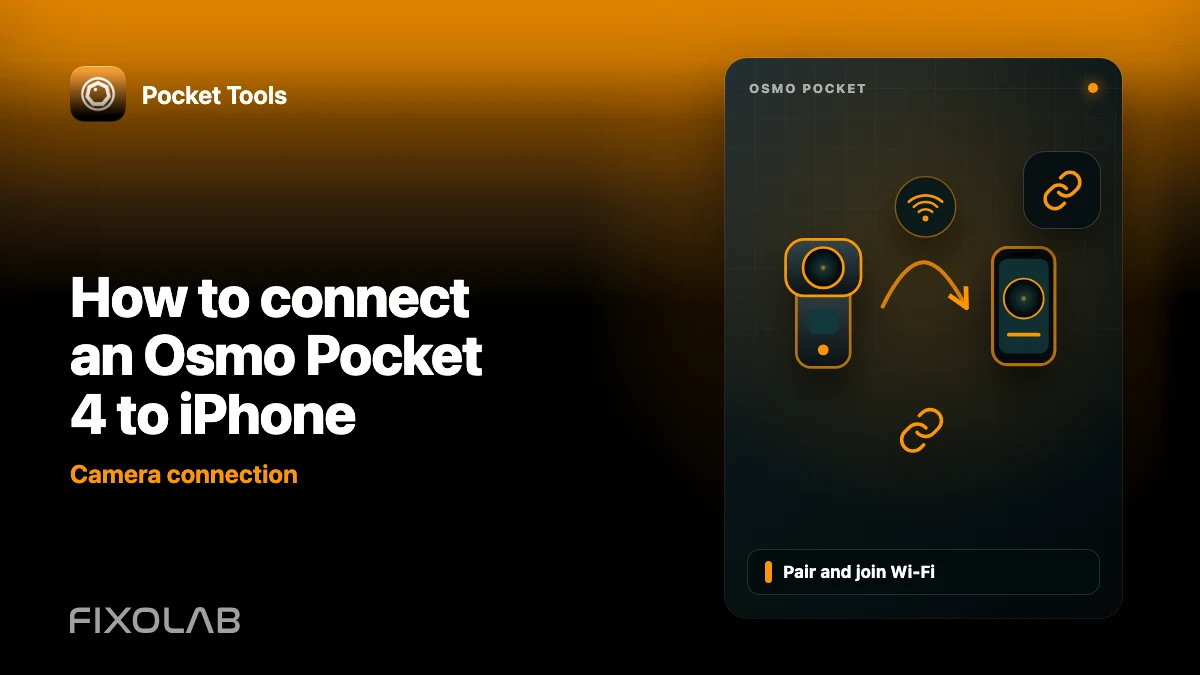
Pocket Tools connects to an Osmo Pocket 4 without routing the camera’s media through a cloud service. Bluetooth finds and pairs the camera; the phone then joins the camera’s own Wi-Fi for the gallery and live view.
Pair with the camera nearby
Turn on the Pocket 4 and enable Bluetooth and Wi-Fi on the iPhone. Open Pocket Tools, select the camera and follow the pairing prompts. Keep the camera close until the Bluetooth exchange finishes. If iOS asks to join the camera network, allow it. A successful Bluetooth connection alone is not enough to transfer photos: the app also needs the camera’s local Wi-Fi link.
Wait for the library
After Wi-Fi joins, Pocket Tools opens a camera session and lists media. The first listing can take time when the card contains many files. Check battery, storage and the newest thumbnails before starting a large download. If media does not appear, confirm that the phone is still connected to the camera network.
Make reconnection easier
The app remembers paired cameras. Give each a distinct name if you use more than one. Reconnect from the saved camera entry after restarting the camera, and allow iOS Bluetooth and Local Network permissions. Pocket 4 is the model with direct hardware validation in this app; behavior on other recognized models is still being verified.